I recommend Wi-Fi for firmware updates because it’s faster. PRO and Pico support Bluetooth; Pico requires firmware 5.x or later. Both also connect via Wi-Fi or a USB adapter.
Before updating to firmware 5.42, the manufacturer recommends powering the logger externally and disconnecting the ESC or removing the propeller. Follow the advice for your starting firmware. Manufacturer update guidance
Prepare the app.
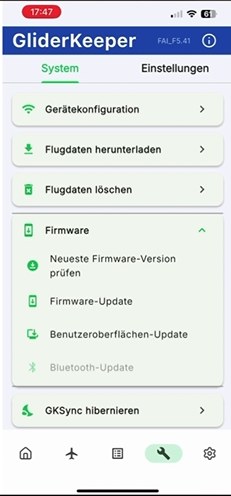
Download the GliderKeeper app from the Play Store or App Store. Open it while connected to the internet. Tap the spanner icon and go to:
Firmware → Check latest firmware
This downloads the available firmware files in advance so they can be used later without an internet connection.
Update via Wi-Fi — my recommendation.
Connect the GliderKeeper to the battery and hold it vertically for about three seconds until it enters Wi-Fi mode. Open your phone’s Wi-Fi settings and connect to the GliderKeeper. The initial password is 123456789.
Return to the GliderKeeper app, tap the magnifying glass and select your logger with the Wi-Fi icon. Go to Firmware → Firmware Update and select the firmware you want.
Start the update and wait until it has fully completed.
Bluetooth on PRO and Pico.
Switch your logger on, open the app and select it via Bluetooth. Pico requires firmware 5.x or later. Then go to Firmware → Firmware Update.
A firmware update takes longer over Bluetooth than over Wi-Fi. Bluetooth is particularly convenient for quickly changing settings or the device name.
Update on a Windows PC with a programmer.
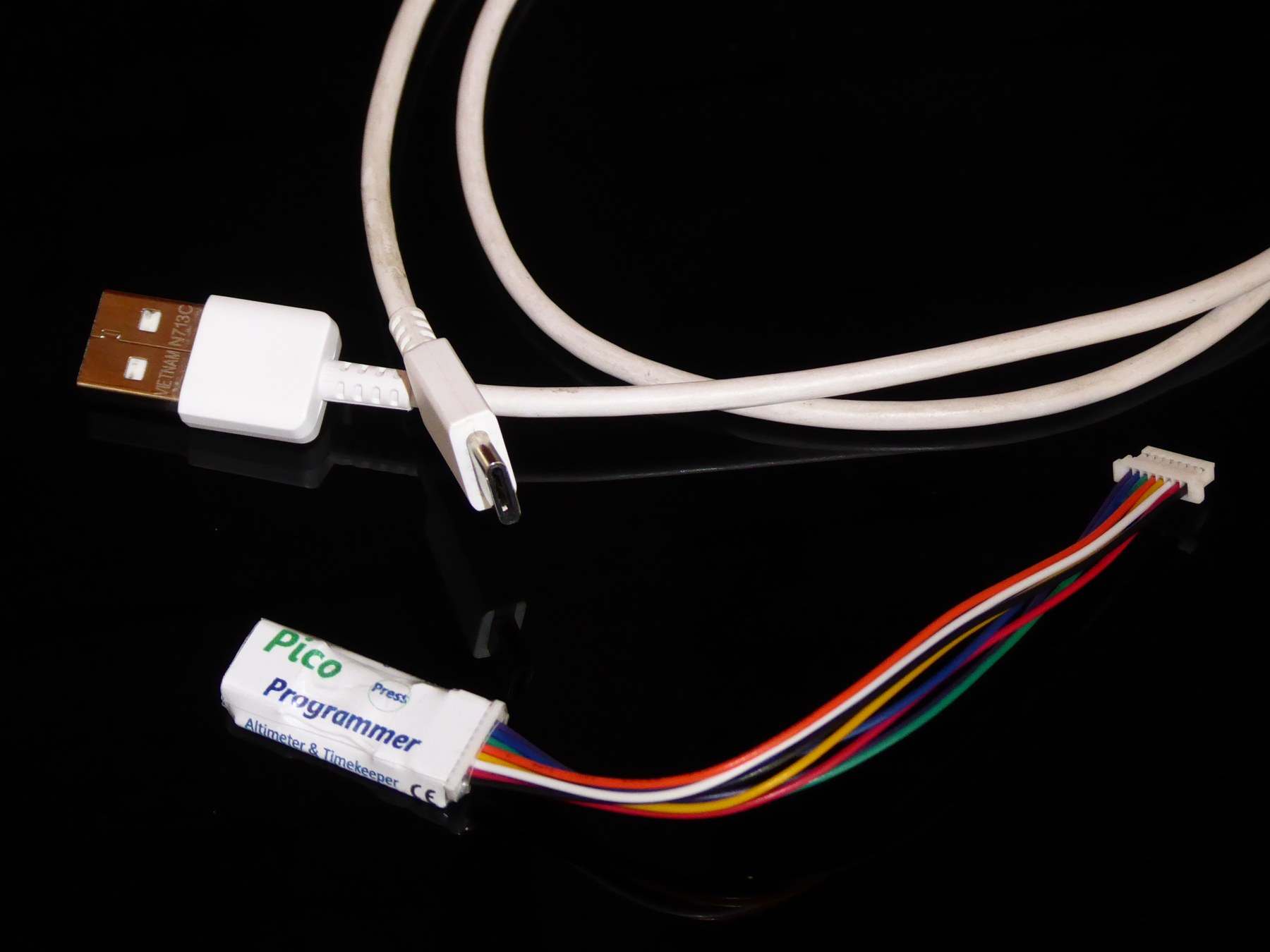
You’ll need the GliderKeeper desktop app, the appropriate programmer and a USB cable that supports data transfer.
Hold the programmer’s “Press” area while plugging in the USB cable. When connected correctly, the logger’s display stays black and the programmer’s red LED lights up. Find the device in the desktop app and install your selected firmware.
Watch every step.
In my video, I demonstrate updating via Wi-Fi, Bluetooth and a programmer on a PC.
Watch on YouTube